
Traffic Light Simulation Using Tinkercad is one of the most engaging Grade 7 STEM Activities that teaches students Arduino programming, circuit design, LED control, and automation through a realistic traffic signal project. By using Tinkercad Circuits and Arduino Uno, students can build, program, and test a working traffic light system without requiring physical hardware.
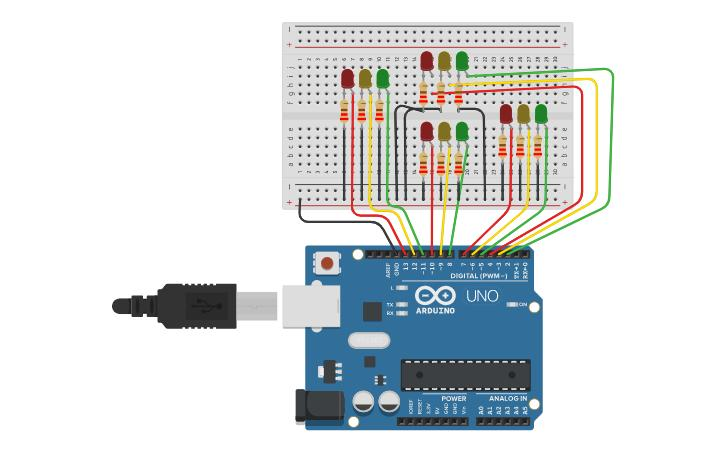
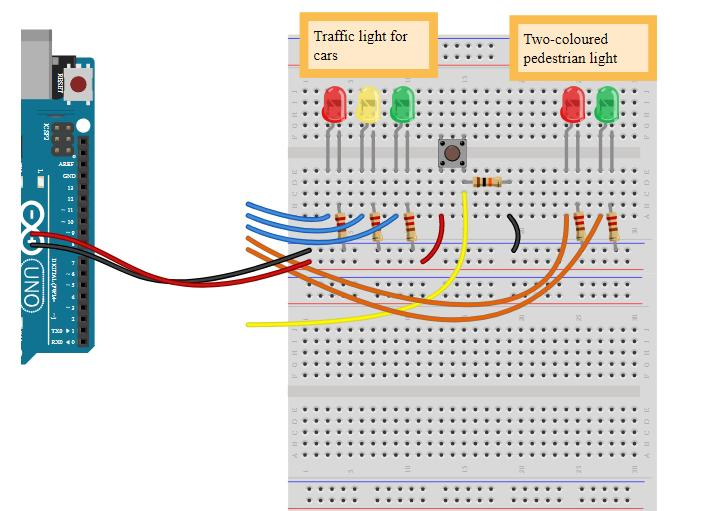
Table of Contents
What is Traffic Light Simulation Using Tinkercad?
Traffic Light Simulation Using Tinkercad is a virtual electronics and programming project that recreates the working of a real traffic signal system. Students use Arduino Uno, LEDs, resistors, and Tinkercad software to create a complete traffic signal simulation.
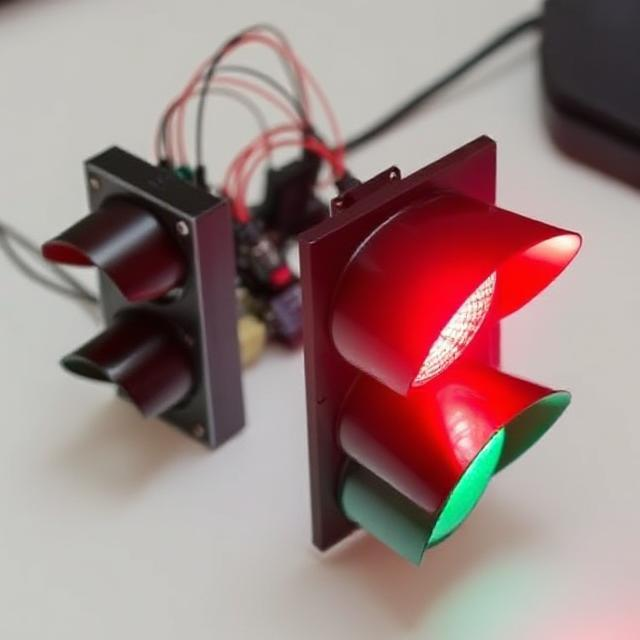
The project demonstrates how LEDs can be controlled through programming instructions. Red, yellow, and green LEDs are switched on and off in a specific sequence to mimic the behavior of real traffic lights found at road intersections.
This project is widely used in STEM education because it introduces students to electronics, coding, automation, and engineering concepts in an easy and practical way.
Why This Project is Perfect for Grade 7 STEM Activities
Among all Grade 7 STEM Activities, this project stands out because it combines science, technology, engineering, and mathematics into one interactive learning experience.
Science
Students learn how electrical circuits work and how LEDs use electrical energy to produce light.
Technology
Students explore Arduino programming and Tinkercad simulation tools.
Engineering
The circuit must be designed, wired, and tested correctly for successful operation.
Mathematics
Students work with timing values, sequences, logic, and problem-solving techniques.
As a result, Traffic Light Simulation Using Tinkercad helps students build technical knowledge while improving creativity and critical-thinking skills.
Components Required
The following components are required for the project:
- Arduino Uno Board
- Breadboard
- Red LED
- Yellow LED
- Green LED
- Three 300Ω Resistors
- Jumper Wires
- Tinkercad Circuits Software
These components work together to create a realistic traffic signal simulation.
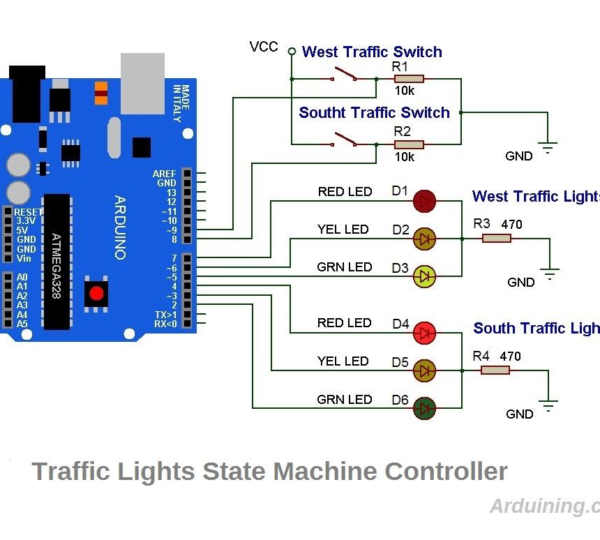
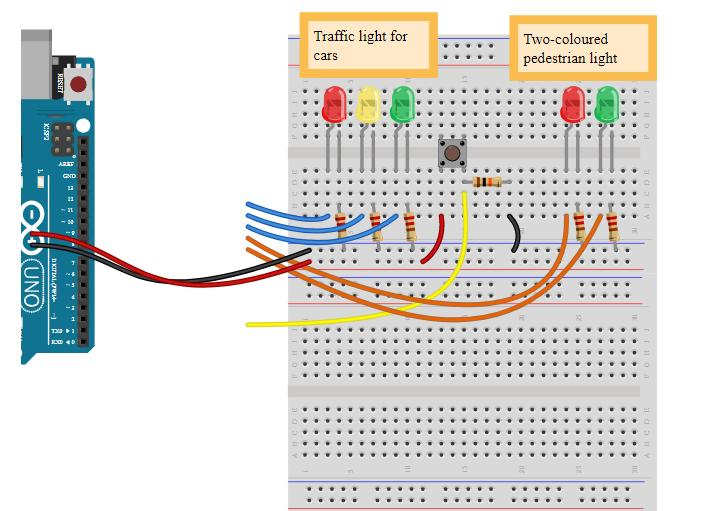
Traffic Light Simulation Using Tinkercad Circuit Connections
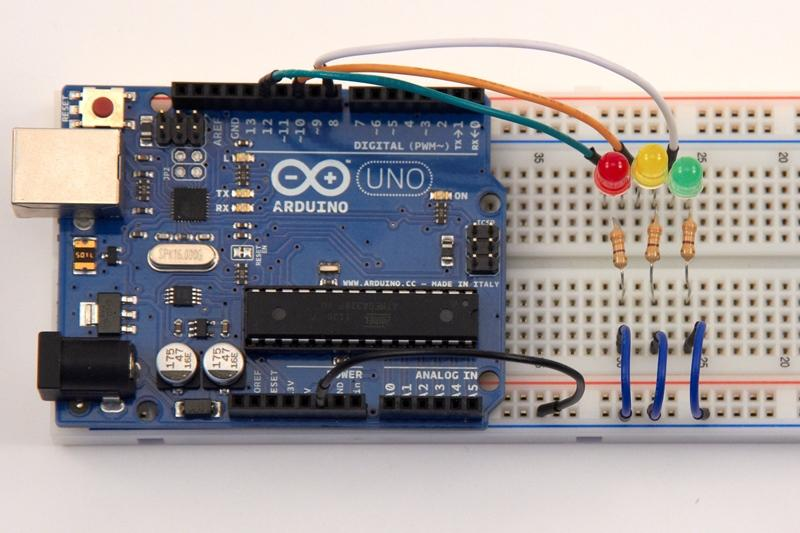
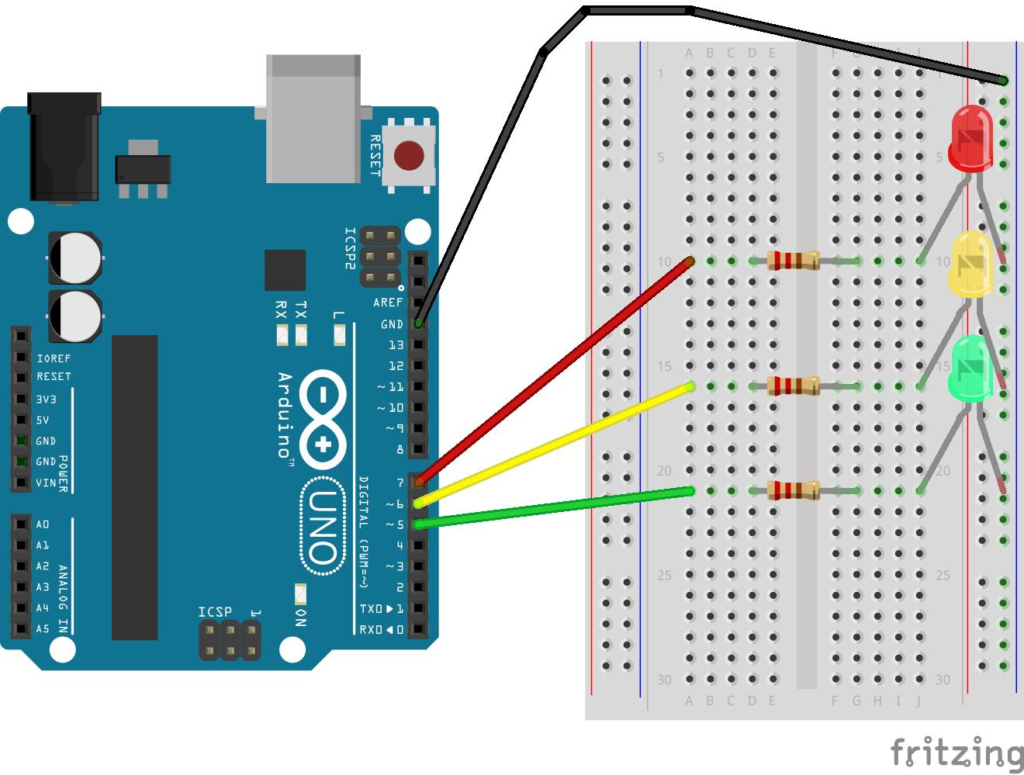
Proper wiring is important for successful operation.
Red LED Connection
- Arduino Pin: 13
- Resistor: 300Ω
- Function: Stop Signal
Yellow LED Connection
- Arduino Pin: 12
- Resistor: 300Ω
- Function: Warning Signal
Green LED Connection
- Arduino Pin: 11
- Resistor: 300Ω
- Function: Go Signal
Ground Connections
All LEDs are connected to ground through resistors. The resistors protect the LEDs from excessive current and improve circuit reliability.
Building the Circuit in Tinkercad
To create the project:
- Open Tinkercad Circuits.
- Create a new circuit.
- Add an Arduino Uno board.
- Insert a breadboard.
- Place red, yellow, and green LEDs.
- Add three 300Ω resistors.
- Connect LEDs to pins 13, 12, and 11.
- Connect resistors to ground.
- Verify all wiring connections.
Once completed, the circuit is ready for programming.
Traffic Light Simulation Using Tinkercad Block Coding
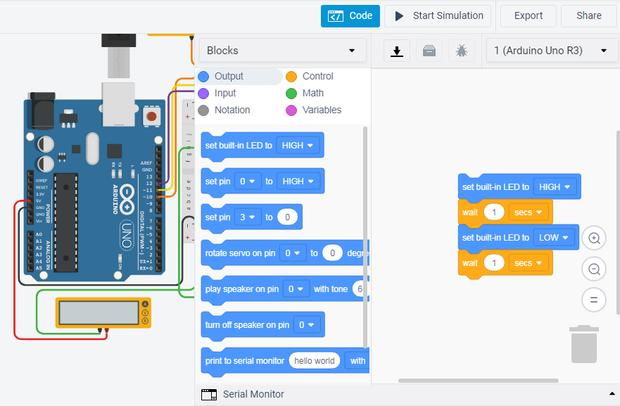
Tinkercad offers an easy-to-use block coding interface that is ideal for beginners.
The traffic light sequence follows these steps:
Step 1: Red Signal
- Pin 13 HIGH
- Pin 12 LOW
- Pin 11 LOW
- Delay: 3000 milliseconds
Step 2: Yellow Signal
- Pin 13 LOW
- Pin 12 HIGH
- Pin 11 LOW
- Delay: 2000 milliseconds
Step 3: Green Signal
- Pin 13 LOW
- Pin 12 LOW
- Pin 11 HIGH
- Delay: 5000 milliseconds
The sequence repeats continuously, creating a realistic traffic light simulation.
Converting Block Code into Arduino Code
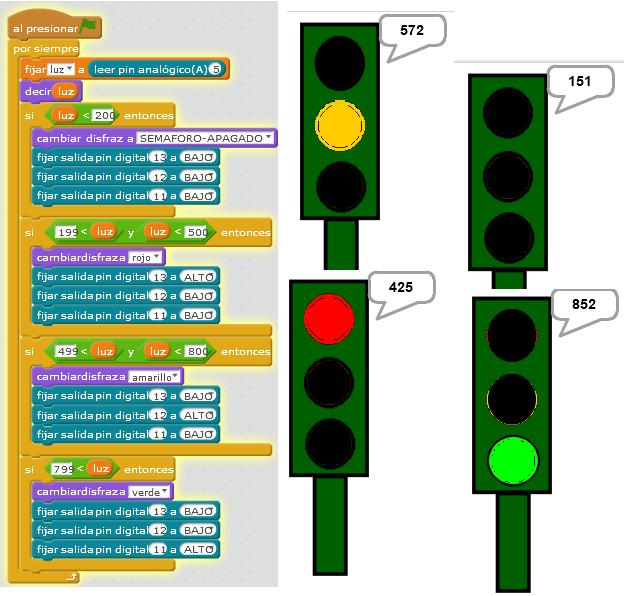
One of the most valuable features of Traffic Light Simulation Using Tinkercad is the ability to convert block coding into Arduino text-based code.
This allows students to:
- Understand Arduino syntax.
- Learn programming logic.
- Transition from visual coding to text coding.
- Develop coding confidence.
The generated Arduino program controls the LEDs exactly as defined in the block code.
Understanding Traffic Signal Timing
Traffic signals rely on timing to control traffic safely.
The simulation uses the following delay values:
| Traffic Signal | Delay |
|---|---|
| Red Light | 3000 ms |
| Yellow Light | 2000 ms |
| Green Light | 5000 ms |
Students can modify these timings to explore different traffic conditions.
For example:
- Longer green lights for busy roads.
- Longer red lights for pedestrian crossings.
- Shorter cycles for demonstration purposes.
Traffic Light Simulation Using Tinkercad encourages experimentation and engineering thinking.
Testing the Simulation
After programming the circuit:
- Click Start Simulation.
- Observe the LED sequence.
- Verify timing intervals.
- Confirm proper LED operation.
If problems occur:
- Check wiring connections.
- Verify resistor placement.
- Confirm pin assignments.
- Review code logic.
Testing helps students develop troubleshooting and debugging skills that are essential in engineering and robotics.
Benefits of Traffic Light Simulation Using Tinkercad
There are many educational benefits to this project.
Improves Coding Skills
Students learn how programming controls hardware devices.
Introduces Electronics
The project demonstrates how LEDs, resistors, and Arduino boards work together.
Develops Problem-Solving Skills
Students learn to identify and fix errors during testing.
Encourages Creativity
Students can modify timings and create advanced traffic management systems.
Supports STEM Education
The project integrates science, technology, engineering, and mathematics into one activity.
These advantages make Traffic Light Simulation Using Tinkercad one of the best Grade 7 STEM Activities available today.
Real-World Applications
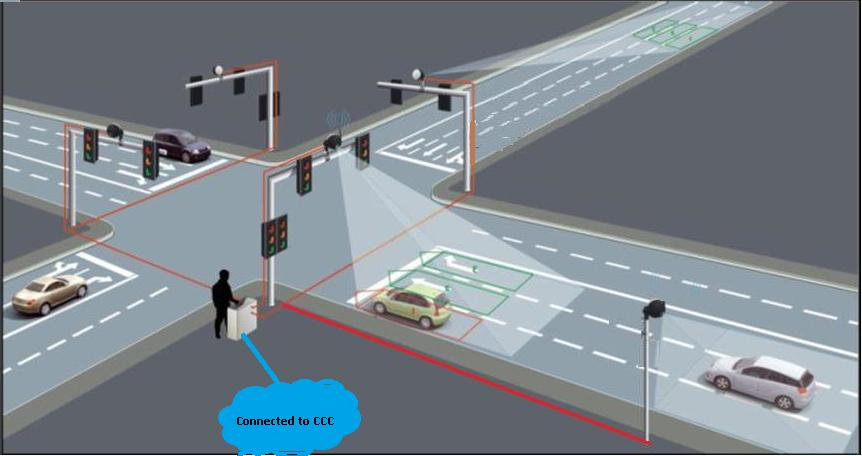
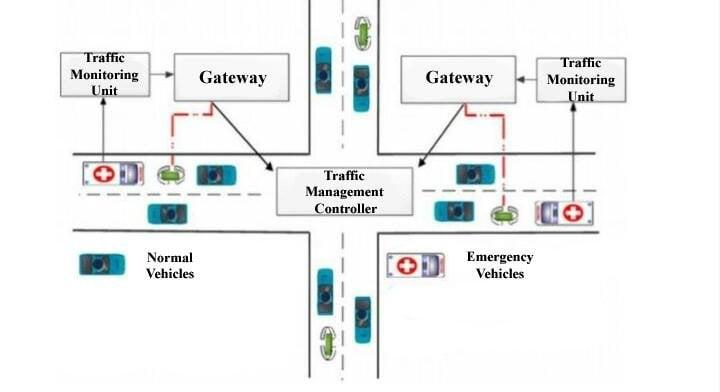
The concepts learned in this project are used in many industries.
Smart Cities
Modern traffic systems automatically adjust signal timing to reduce congestion.
Automated Intersections
Sensors and controllers optimize vehicle movement.
Railway Crossings
Signal lights improve safety at crossings.
Parking Management Systems
Traffic indicators help guide vehicles efficiently.
Industrial Safety Systems
Factories use signal lights to communicate machine status and safety conditions.
Grade 7 STEM Activities Using Arduino
After completing Traffic Light Simulation Using Tinkercad, students can explore additional projects such as:
- Automatic Street Light Systems
- Servo Motor Projects
- Smart Parking Systems
- LED Chaser Circuits
- Home Automation Models
- Robot Control Projects
- Obstacle Avoiding Robots
These Grade 7 STEM Activities help students build a strong foundation in robotics and engineering.
RoboSiddhi STEM Learning Programs
RoboSiddhi promotes practical STEM learning through robotics, electronics, coding, and engineering projects.
Students participating in RoboSiddhi programs gain hands-on experience through real-world projects that improve creativity, innovation, and technical skills.
Projects such as Traffic Light Simulation Using Tinkercad help students understand automation systems while preparing them for future careers in technology and engineering.
For additional learning resources, students can explore Arduino programming through the official Arduino website and practice circuit simulation using Tinkercad.
Frequently Asked Questions
What is Tinkercad?
Tinkercad is an online platform for 3D design, electronics simulation, and coding projects.
Why are resistors used with LEDs?
Resistors limit current flow and protect LEDs from damage.
Which Arduino pins are used in this project?
Pin 13 controls the red LED, pin 12 controls the yellow LED, and pin 11 controls the green LED.
Can I change the traffic light timing?
Yes. Delay values can be modified easily in both block coding and Arduino code.
Is this project suitable for beginners?
Yes. Traffic Light Simulation Using Tinkercad is one of the best beginner-friendly Arduino projects.
Conclusion
Traffic Light Simulation Using Tinkercad is an exciting project that introduces students to electronics, Arduino programming, and automation. Through circuit design, block coding, and simulation testing, students gain practical STEM skills while understanding how real traffic systems operate.
As one of the most effective Grade 7 STEM Activities, this project encourages creativity, experimentation, and problem-solving. Whether used in classrooms, STEM labs, or robotics workshops, Traffic Light Simulation Using Tinkercad provides an excellent foundation for future learning in robotics, coding, and engineering.