
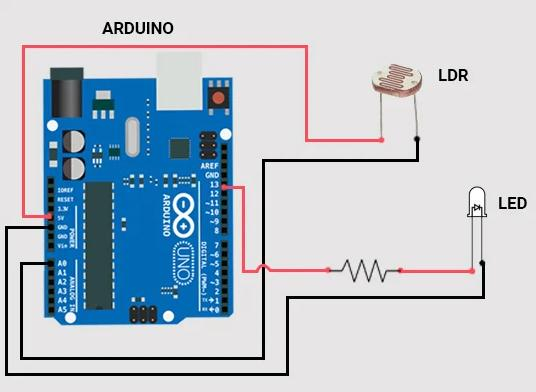
LDR Sensor with Arduino is one of the most exciting Grade 7 STEM Activities that introduces students to electronics, programming, sensors, and automation. This project demonstrates how an Arduino board can read light intensity using an LDR (Light Dependent Resistor) and automatically control an LED based on surrounding light conditions.
By combining hardware and software, students learn how smart systems respond to environmental changes. The project is beginner-friendly and helps learners understand how sensors are used in modern automation systems such as automatic street lights, smart homes, and energy-efficient lighting solutions.
Table of Contents
What is an LDR Sensor with Arduino?
An LDR Sensor with Arduino project uses a Light Dependent Resistor to detect changes in light intensity and send that information to an Arduino board. The Arduino processes the sensor data and controls an output device such as an LED.
An LDR changes its resistance depending on the amount of light falling on it. In bright conditions, the resistance decreases, while in darkness the resistance increases. The Arduino continuously reads these changes through an analog input pin and takes action based on programmed conditions.
This simple yet powerful concept forms the foundation of many modern automation systems.
Why This Project is Perfect for Grade 7 STEM Activities
Grade 7 STEM Activities should encourage creativity, experimentation, and practical learning. The LDR Sensor with Arduino project achieves all these objectives while introducing students to real-world engineering concepts.
Science
Students learn about light intensity, electrical resistance, and sensor behavior.
Technology
The project introduces Arduino programming and sensor integration.
Engineering
Students design and test a working electronic system.
Mathematics
Learners understand analog values, comparisons, and logical decision-making.
This combination makes the project highly effective for STEM education.
Components Required
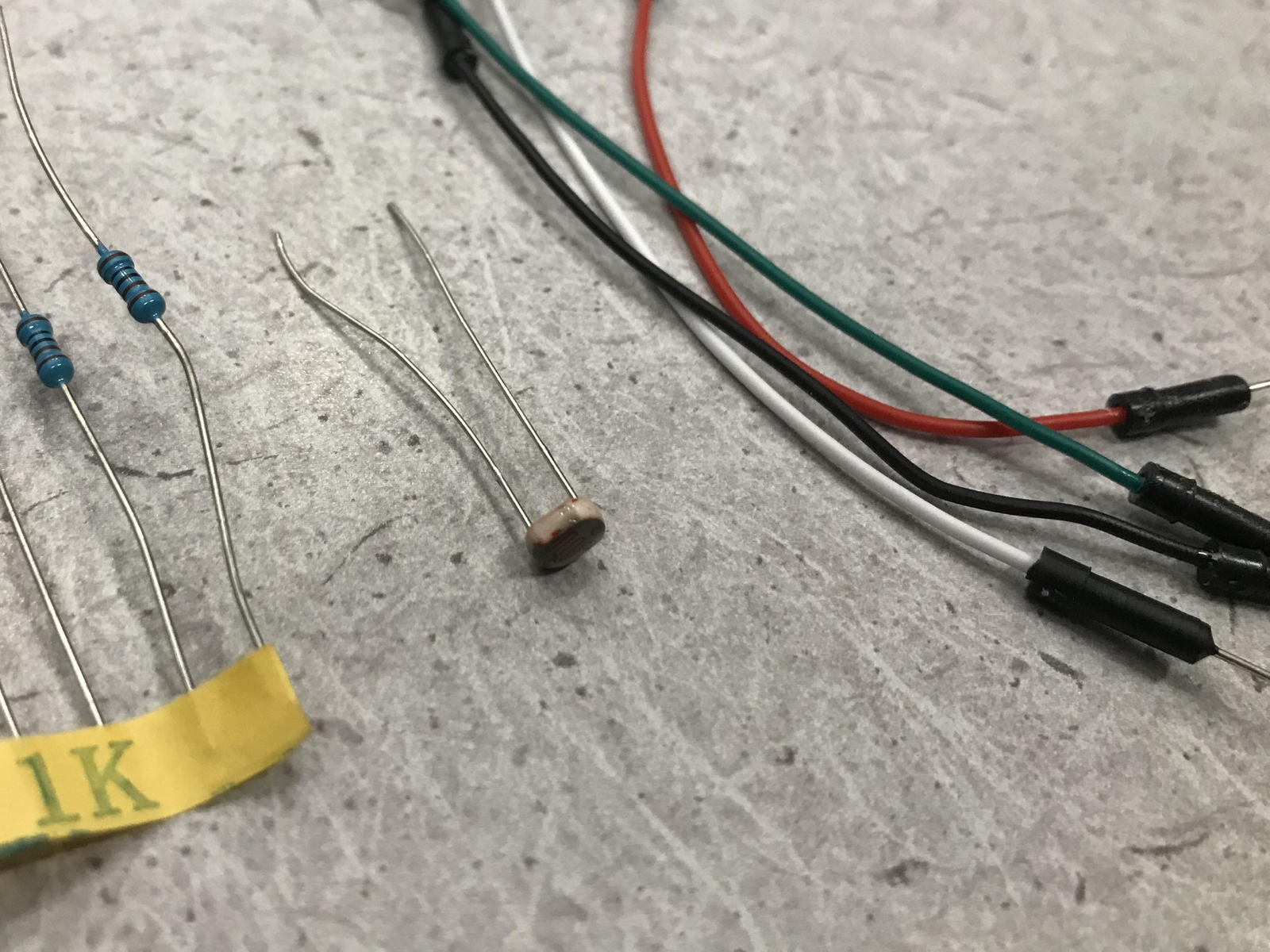
The project requires only a few basic components:
- Arduino Uno Board
- LDR Sensor
- LED
- Resistor
- Breadboard
- Jumper Wires
- USB Cable
- Computer with Arduino IDE
These components work together to create a light-sensitive automation system.
Understanding How an LDR Works
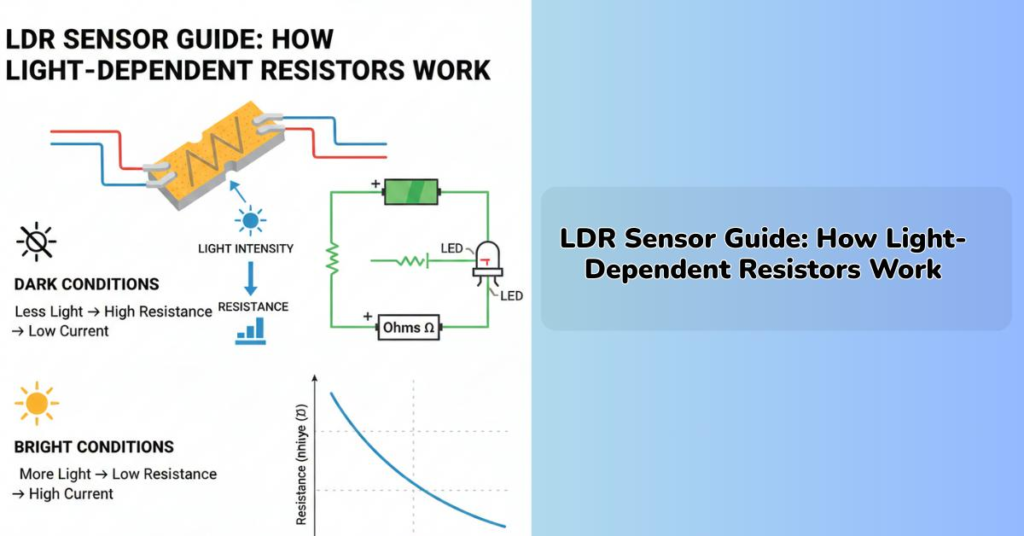
The Light Dependent Resistor is a sensor whose resistance changes according to light intensity.
In Bright Light
- Resistance decreases.
- Arduino receives higher light readings.
- LED remains OFF or dim.
In Darkness
- Resistance increases.
- Arduino detects reduced light levels.
- LED turns ON automatically.
This behavior allows the system to function like an automatic street light.
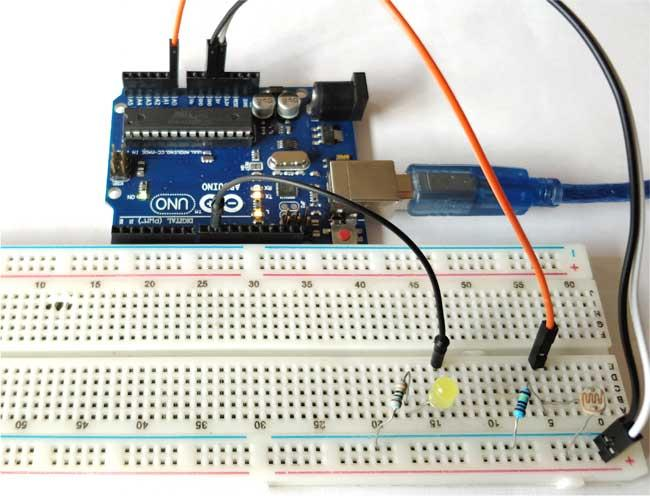
LDR Sensor with Arduino Circuit Connections
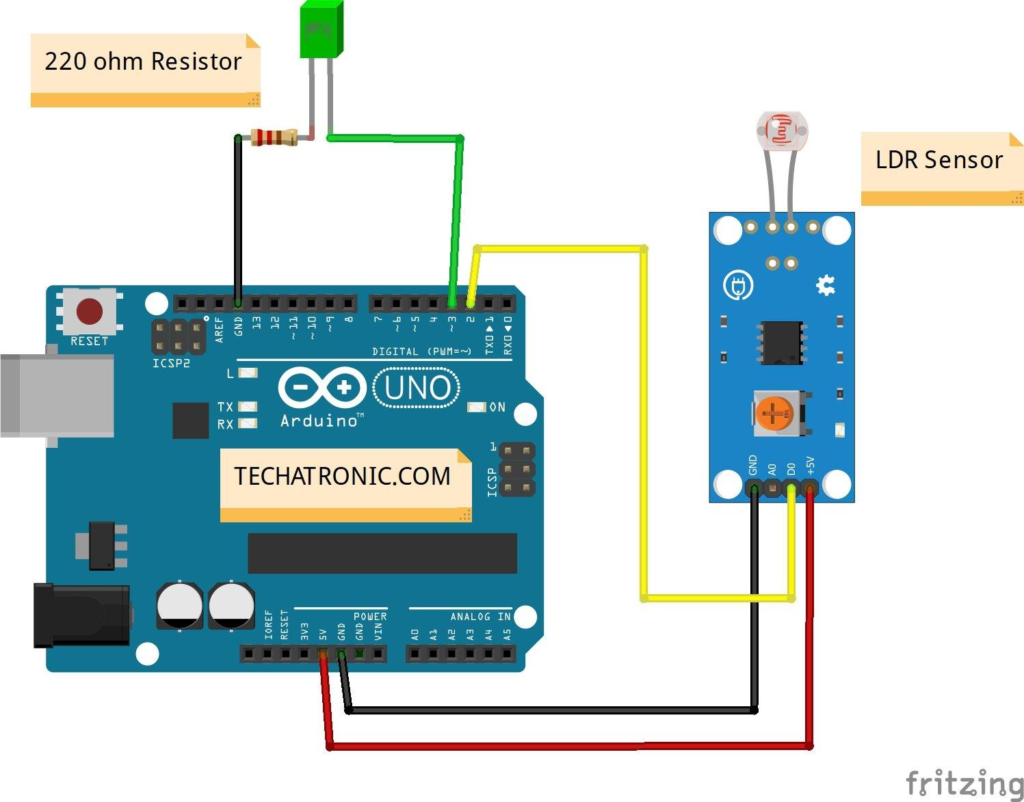
Proper wiring is important for successful operation.
LDR Connections
| LDR Pin | Arduino Connection |
|---|---|
| VCC | 5V |
| GND | GND |
| Output | A0 |
The LDR sensor sends analog values to Arduino through pin A0.
LED Connections
| LED Terminal | Arduino Connection |
|---|---|
| Positive (Anode) | Digital Pin 7 |
| Negative (Cathode) | GND through Resistor |
The resistor protects the LED from excessive current.
Common Ground
Both the LED and LDR share a common ground connection, which simplifies wiring and improves circuit stability.
Arduino Programming and Sensor Reading
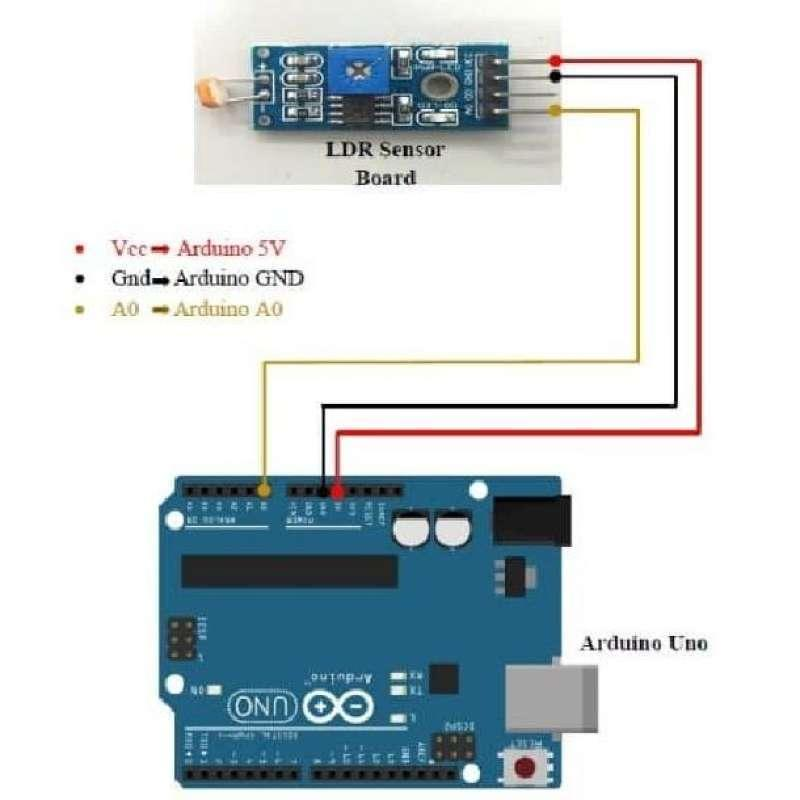
The Arduino program continuously monitors the LDR sensor connected to analog pin A0.
The process works as follows:
- Arduino reads light intensity values.
- Sensor data is compared with a predefined threshold.
- If darkness is detected, Arduino activates the LED on pin 7.
- If sufficient light is present, the LED remains OFF.
The Arduino IDE is used to write, verify, and upload the program to the board.
One of the most valuable lessons from the LDR Sensor with Arduino project is understanding how sensors provide real-time information that can be used to control electronic devices automatically.
Testing the Project
After completing the circuit and uploading the code, the project can be tested.
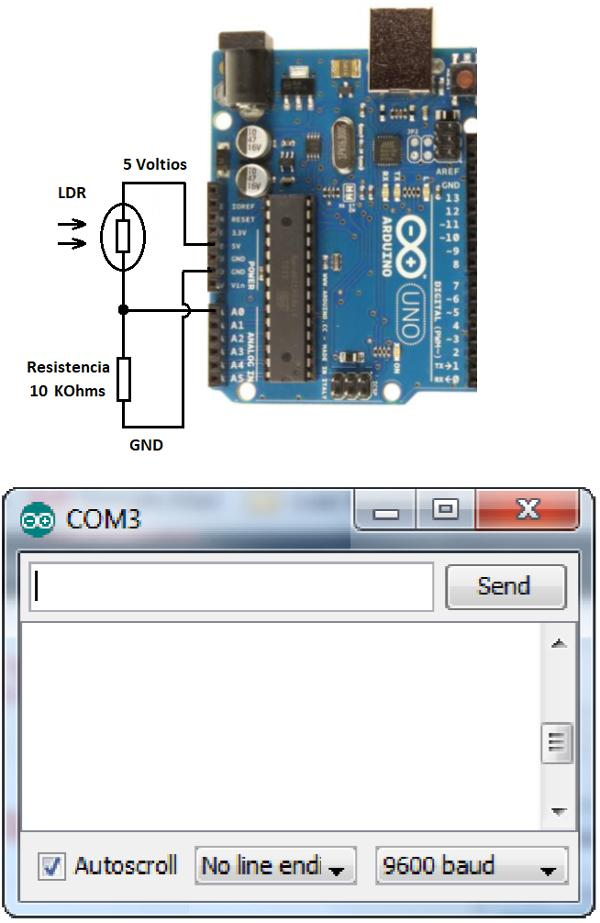
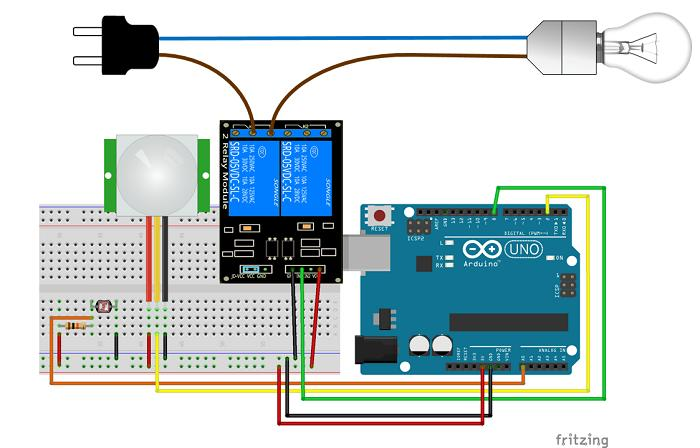
Step 1
Connect the Arduino board to the computer using a USB cable.
Step 2
Upload the program through the Arduino IDE.
Step 3
Observe the LED behavior under different lighting conditions.
Step 4
Cover the LDR sensor with your hand.
Result
- The LED turns ON when darkness is detected.
- The LED turns OFF when light is present.
This confirms that the sensor and Arduino are communicating correctly.
Benefits of Learning with LDR Sensors
The LDR Sensor with Arduino project provides many educational benefits.
Develops Coding Skills
Students learn how to read sensor values and make decisions using programming logic.
Introduces Sensor Technology
Sensors are essential components in robotics, automation, and IoT systems.
Encourages Problem Solving
Students troubleshoot wiring and programming issues.
Improves Creativity
Learners can modify the project and create their own smart lighting systems.
Supports STEM Learning
The project integrates science, technology, engineering, and mathematics into one practical activity.
Real-World Applications of LDR Sensor with Arduino
LDR sensors are widely used in modern technology.
Automatic Street Lights
Street lights automatically switch ON at night and OFF during the day.
Smart Home Systems
Lighting systems adjust according to ambient light conditions.
Solar Tracking Systems
Solar panels use light sensors to maximize energy collection.
Security Systems
Motion and lighting systems often use light detection for automation.
Smart Agriculture
Greenhouses monitor light levels to optimize plant growth.
These applications demonstrate how the concepts learned in the LDR Sensor with Arduino project are used in everyday life.
Grade 7 STEM Activities Using Arduino
After completing this project, students can explore additional Grade 7 STEM Activities such as:
- Traffic Light Simulation Using Tinkercad
- Servo Motor with Arduino
- Automatic Street Light Projects
- Smart Parking Systems
- Obstacle Avoiding Robots
- LED Chaser Circuits
- Home Automation Models
These projects help students build advanced skills in robotics, electronics, and programming.
RoboSiddhi STEM Learning Programs
RoboSiddhi promotes hands-on STEM education through robotics, coding, electronics, and engineering activities. Projects such as the LDR Sensor with Arduino help students understand real-world technology while developing critical thinking and innovation skills.
Through project-based learning, students gain confidence in problem-solving and become better prepared for future careers in science and technology.
Frequently Asked Questions
What does LDR stand for?
LDR stands for Light Dependent Resistor.
Which Arduino pin is used for the LDR sensor?
The sensor output is connected to analog pin A0.
Which pin controls the LED?
The LED is connected to digital pin 7.
Why is a resistor used with the LED?
The resistor limits current and protects the LED from damage.
Is this project suitable for beginners?
Yes. The LDR Sensor with Arduino project is ideal for beginners and Grade 7 STEM learners.
Conclusion
LDR Sensor with Arduino is an excellent beginner project that introduces students to sensors, automation, and programming. By using an LDR to detect light intensity and control an LED automatically, students gain practical experience in electronics and embedded systems.
As one of the most effective Grade 7 STEM Activities, this project encourages creativity, experimentation, and problem-solving. The concepts learned through this activity form the foundation for advanced robotics, IoT, and automation projects, making it a valuable addition to any STEM learning program.