
The Python Installation Guide is designed for beginners who want to start their programming journey with Python. Python is one of the easiest and most powerful programming languages in the world, and setting it up correctly is the first step toward learning coding, automation, artificial intelligence, robotics, and software development.
In this Python Installation Guide, you will learn how to download Python, install Thonny IDE, verify the installation, write your first Python program, and get a brief introduction to variables.
Table of Contents
Why You Need a Python Installation Guide
Python Installation Guide for Beginners
Before writing any code, you need the correct tools installed on your computer. Python works on Windows, Linux, and macOS, making it accessible to almost everyone.
A proper installation ensures that your coding environment is ready for creating applications, websites, automation tools, and AI projects.
Downloading Python
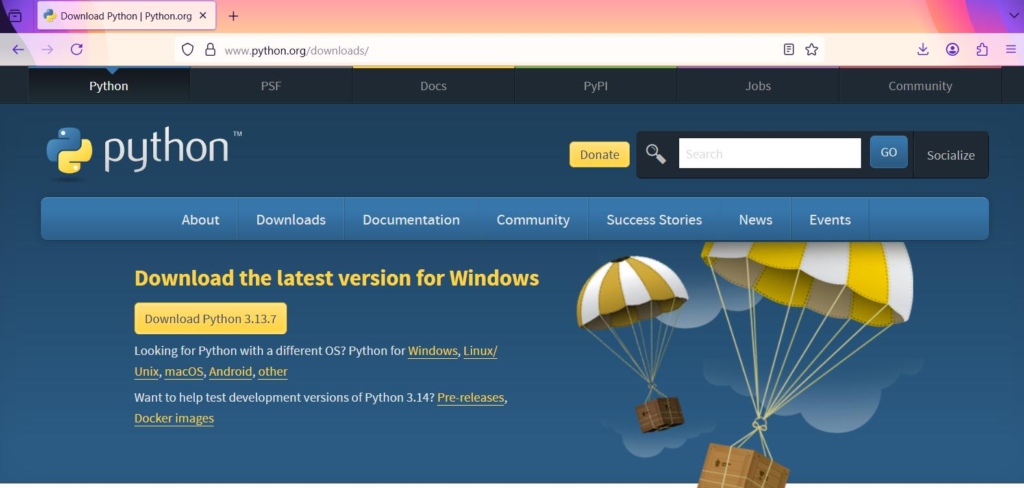
The first step is downloading Python from the official website.
Steps to Download Python
- Visit the official Python website.
- Select your operating system.
- Download the latest stable version.
- Wait for the installer to finish downloading.
Supported Operating Systems
- Windows
- macOS
- Linux
Before downloading, it is recommended to verify whether your computer uses a 32-bit or 64-bit operating system.
Python Installation Guide: Installing Python
After downloading the installer, follow these steps:
Installation Steps
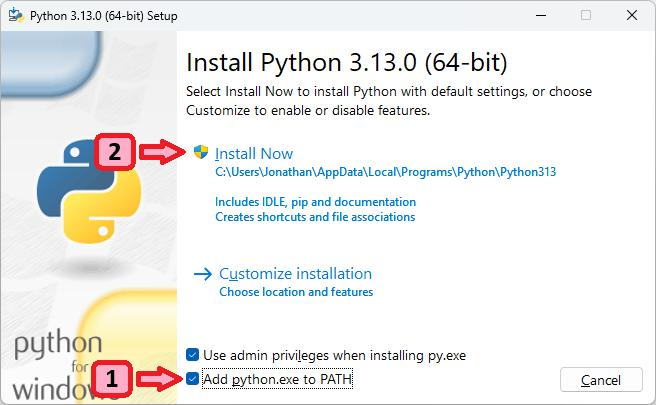
- Open the Python installer.
- Accept the license agreement.
- Select additional options such as creating a desktop icon.
- Complete the installation process.
- Close the installer after successful setup.
Once installation is complete, Python is ready to be used on your computer.
Benefits of Installing Python
- Access to Python programming tools
- Ability to run Python scripts
- Support for thousands of libraries
- Foundation for learning coding
Python Installation Guide: Installing Thonny IDE
Python Installation Guide Thonny IDE
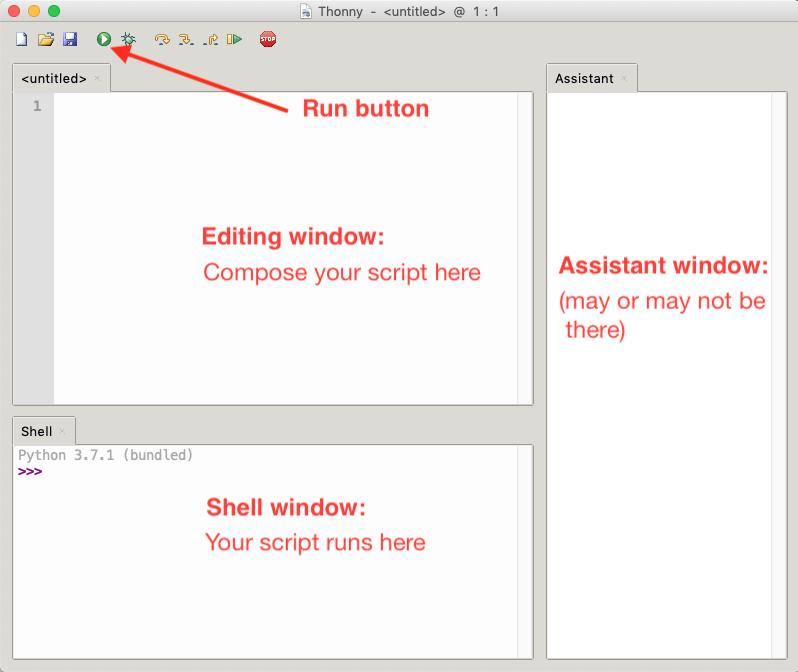
Thonny is a beginner-friendly Integrated Development Environment (IDE) designed specifically for learning Python.
Why Use Thonny?
- Easy interface
- Beginner-friendly design
- Built-in Python support
- Simple debugging tools
- Clear output display
After downloading and installing Thonny, open the application and create a new Python file.
Saving Python Files
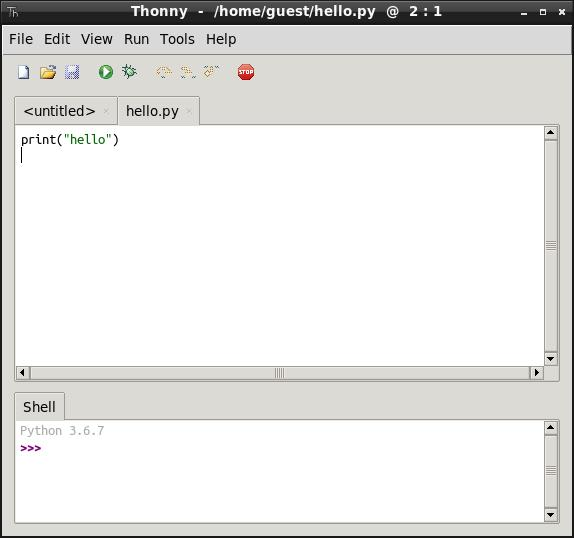
Every Python file should be saved using the .py extension.
Example:
hello.pyThe .py extension tells the operating system that the file contains Python code.
Python Installation Guide: Verifying Python Installation
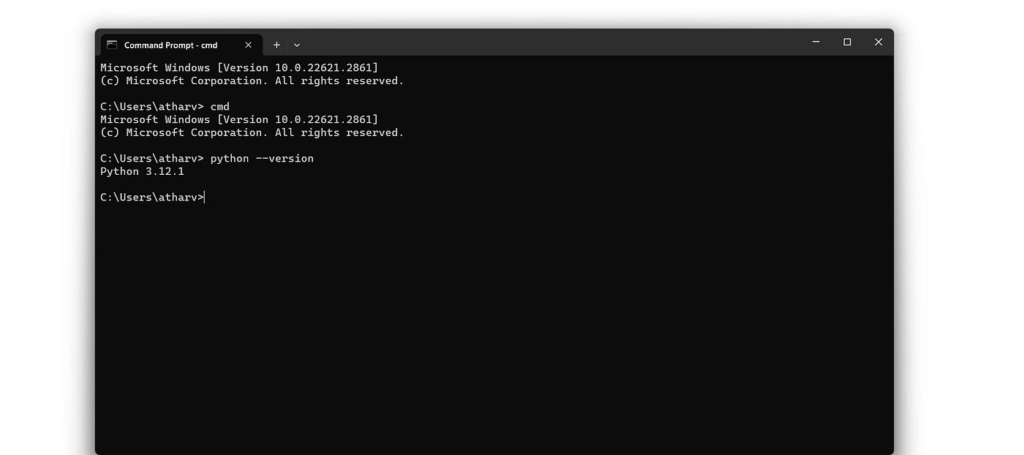
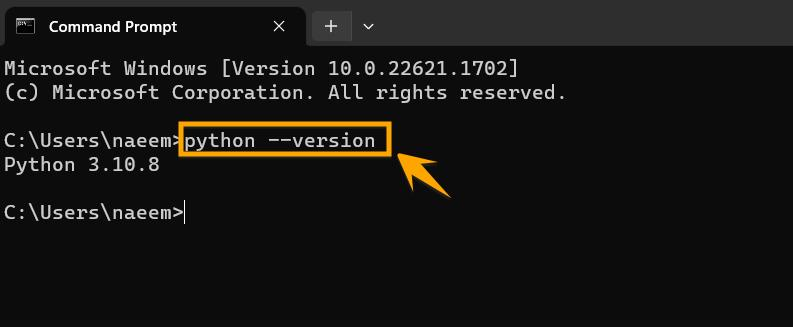
Python Installation Guide Verify Installation
After installation, it is important to verify that Python is working correctly.
Open Command Prompt
- Press Windows + R
- Type
cmd - Press Enter
Check Python Version
python --versionIf Python is installed correctly, the version number will appear.
Sometimes users may see a “Python not found” message. This usually means Python has not been added to the system PATH correctly.
Opening Python directly or using Thonny often confirms whether the installation was successful.
Python Installation Guide: Writing Your First Python Program
Every programming journey starts with the famous Hello World program.
Example Program
print("Hello World")Output
Hello WorldThis simple command uses the print() function to display text on the screen.
Why Learn Hello World?
- Confirms Python is installed correctly
- Demonstrates code execution
- Introduces Python syntax
Running the program in Thonny displays the output in a clean and organized console window.
Python Installation Guide: Introduction to Variables
Variables are containers used to store data.
Example
a = 6
print(a)
Output
6In this example:
ais a variable6is the stored valueprint(a)displays the value
Variables are one of the most important concepts in programming because they allow programs to store and manipulate information.
RoboSiddhi Learning Experience
This lesson was presented as part of the RoboSiddhi Python learning series.
Students learned:
- Downloading Python
- Installing Python
- Installing Thonny IDE
- Verifying installation
- Running the Hello World program
- Understanding basic variables
The session focused on helping beginners set up their programming environment and gain confidence before moving to advanced coding topics.
Practical YouTube Tutorial
To reinforce your learning, watch beginner tutorials covering:
- Python Installation Tutorial
- Thonny IDE Setup Guide
- Python Hello World Program
- Python Variables for Beginners
Practical demonstrations help students understand coding concepts through real examples and hands-on exercises.
🚀 Full Course: Python in English (Beginner to Advanced)
Conclusion
This Python Installation Guide covered everything a beginner needs to start programming with Python. From downloading Python and installing Thonny IDE to verifying the setup and writing the first Hello World program, these steps create a strong foundation for learning programming.
As you continue your Python journey, you will explore variables, data types, mathematical operations, decision-making statements, and many other exciting concepts. With regular practice, Python can become a powerful tool for building applications, automating tasks, and creating innovative projects.